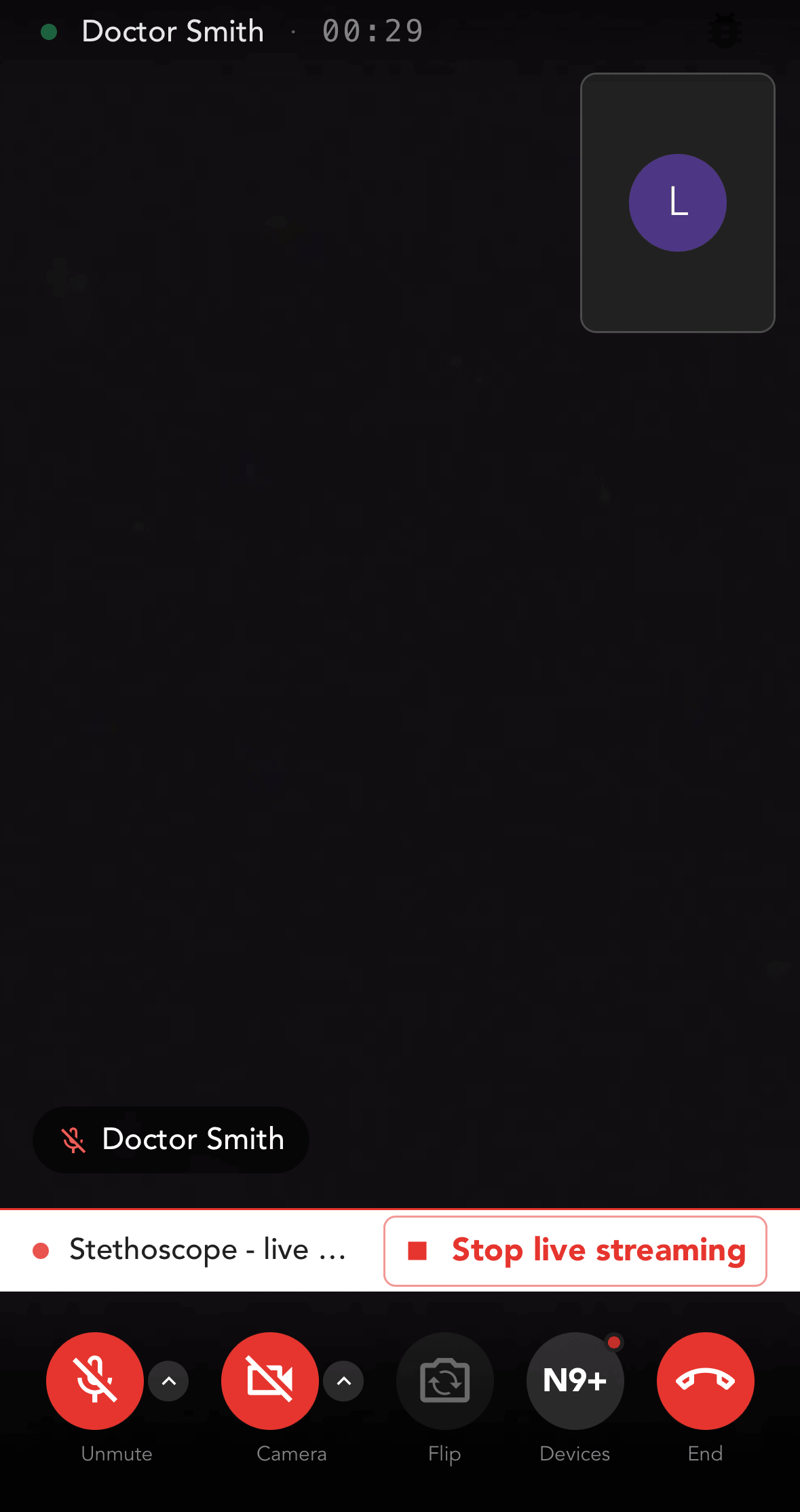
If your healthcare provider has enabled this feature, they will have an option to contact you via video call. Please note the call can only be initiated by your healthcare provider.
Live Session
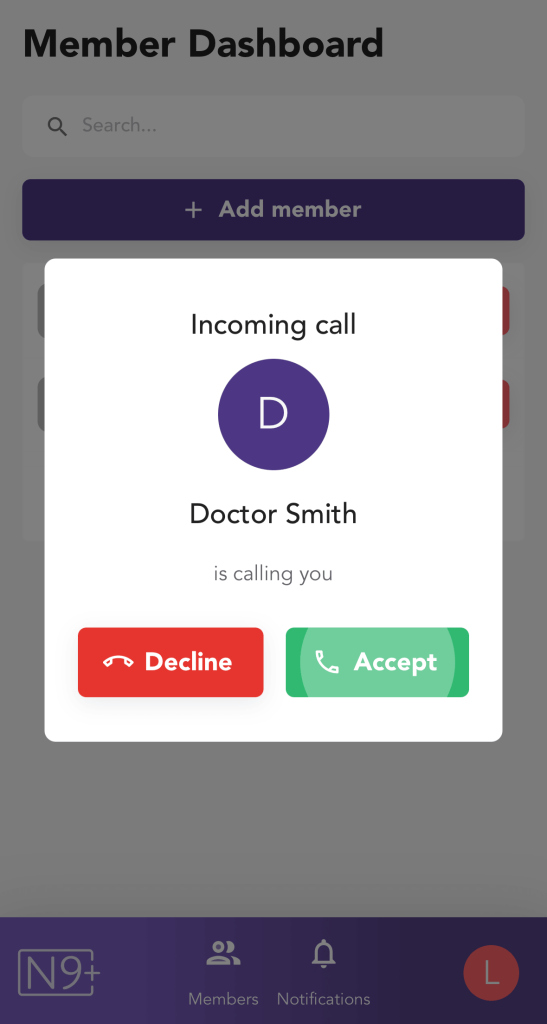
If your provider selects the option of contacting you by Live Session call, you will receive a notification on your phone, which you can accept or decline
If you accept, you will be redirected to the N9+ app and asked to login
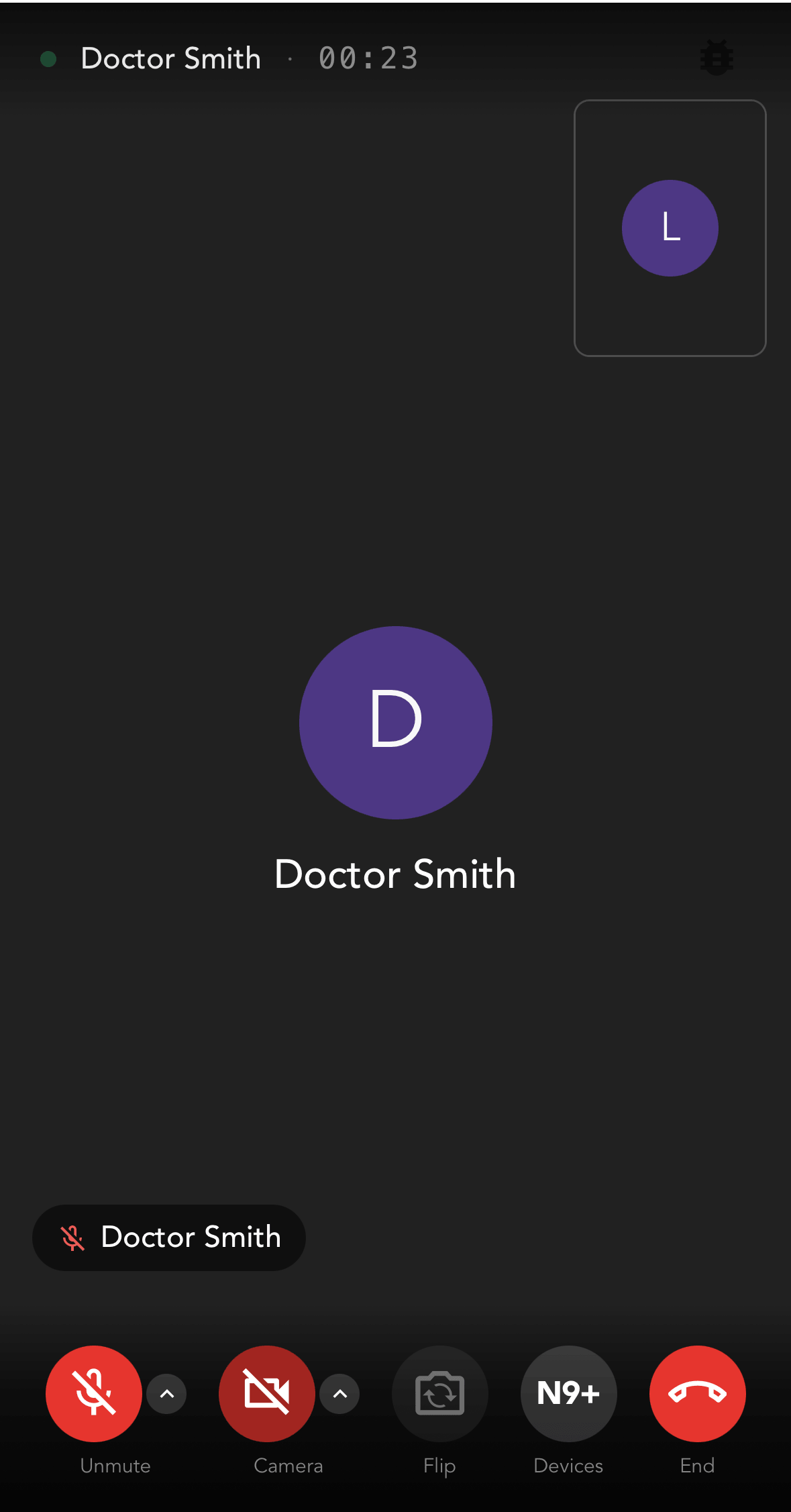
A Live Session window will open with controls to turn your video on/off, mute your sound, switch between your phone camera, and end the call.
Live Streaming
If your provider selects the option of contacting you by Live Streaming call, you will receive a notification on your phone, which will allow you to speak with your physician while also taking medical exams using the N9+ devices
You can accept or decline the call. If you accept, you will be redirected to the N9+ app and asked to login
A Live Streaming window will open with controls to turn your video on/off, mute your sound, switch between your phone camera, and end the call.
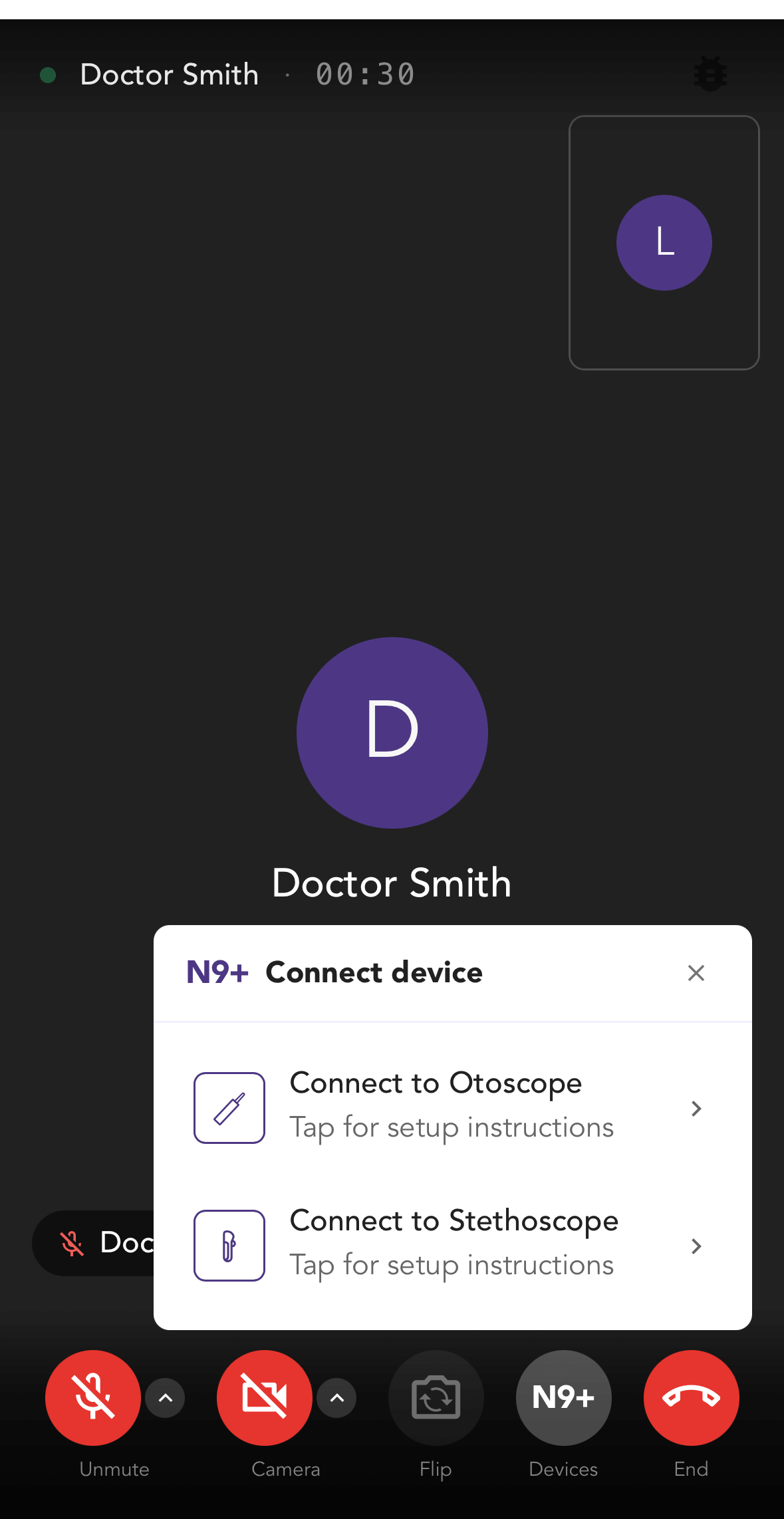
To start streaming to your provider, tap the N9+ button:
Add Your Tooltip Text Here
Select the device you wish to connect to:
Otoscope – for Ears and Throat exam
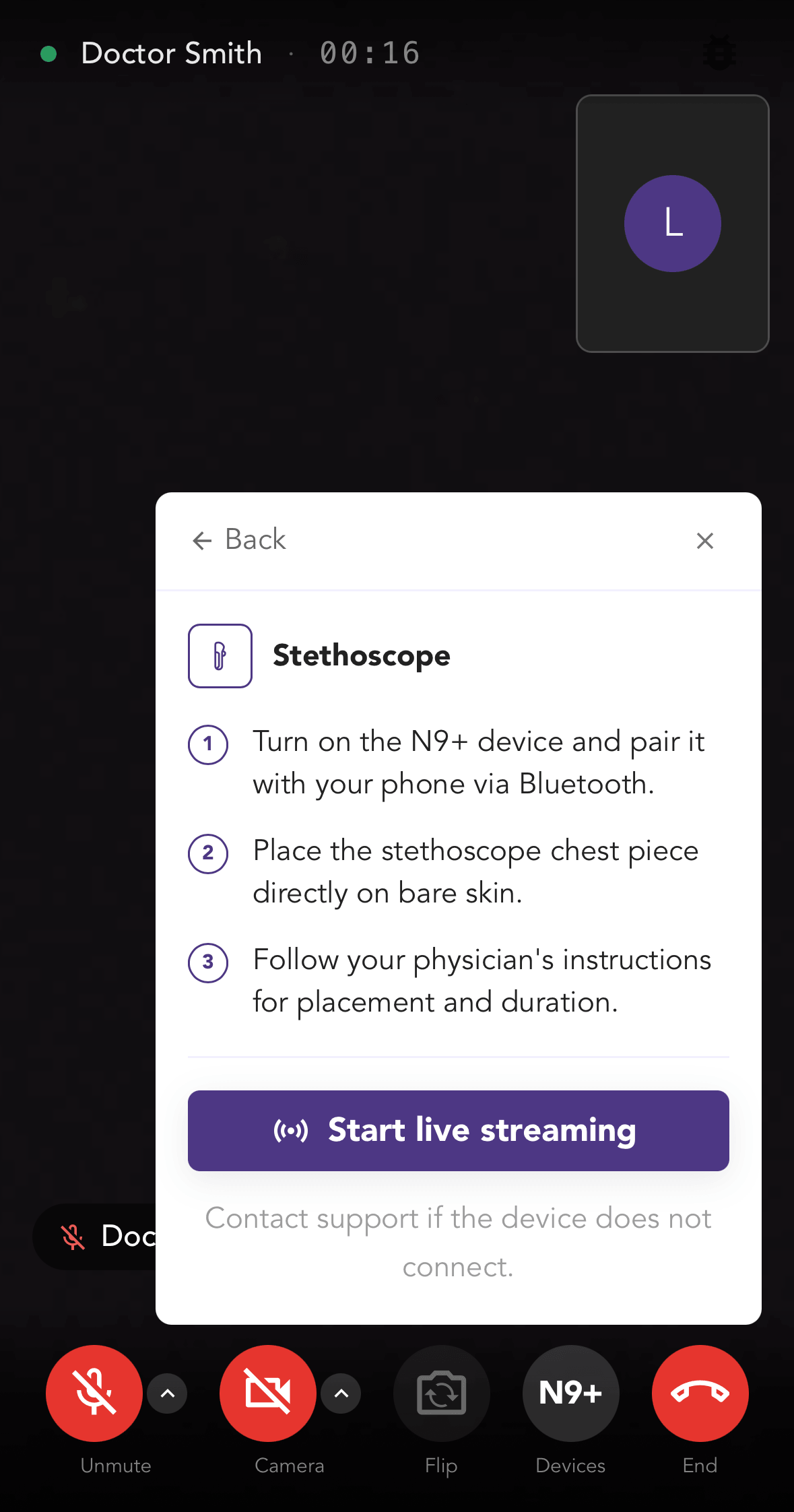
Stethoscope – for Heart, Lungs and Abdomen
Add Your Tooltip Text Here
Follow the instructions to connect to each device and start the live streaming. Once connected, your provider will be able to listen and see the live feed from your device, capture audio and image, and review the findings with you while on the call
Add Your Tooltip Text Here
To stop the live streaming, tap the button. You can then switch to the other device or reconnect if needed
Add Your Tooltip Text Here
Once the call has ended, any data captured by your provider will be saved to your patient file in the database